

Dashboard Overview
A tour of the NemoRouter dashboard — what each part of the sidebar does
Last updated
The Overview page is your dashboard home. It's the first thing you see after signing in, and it summarizes the health of your organization at a glance.
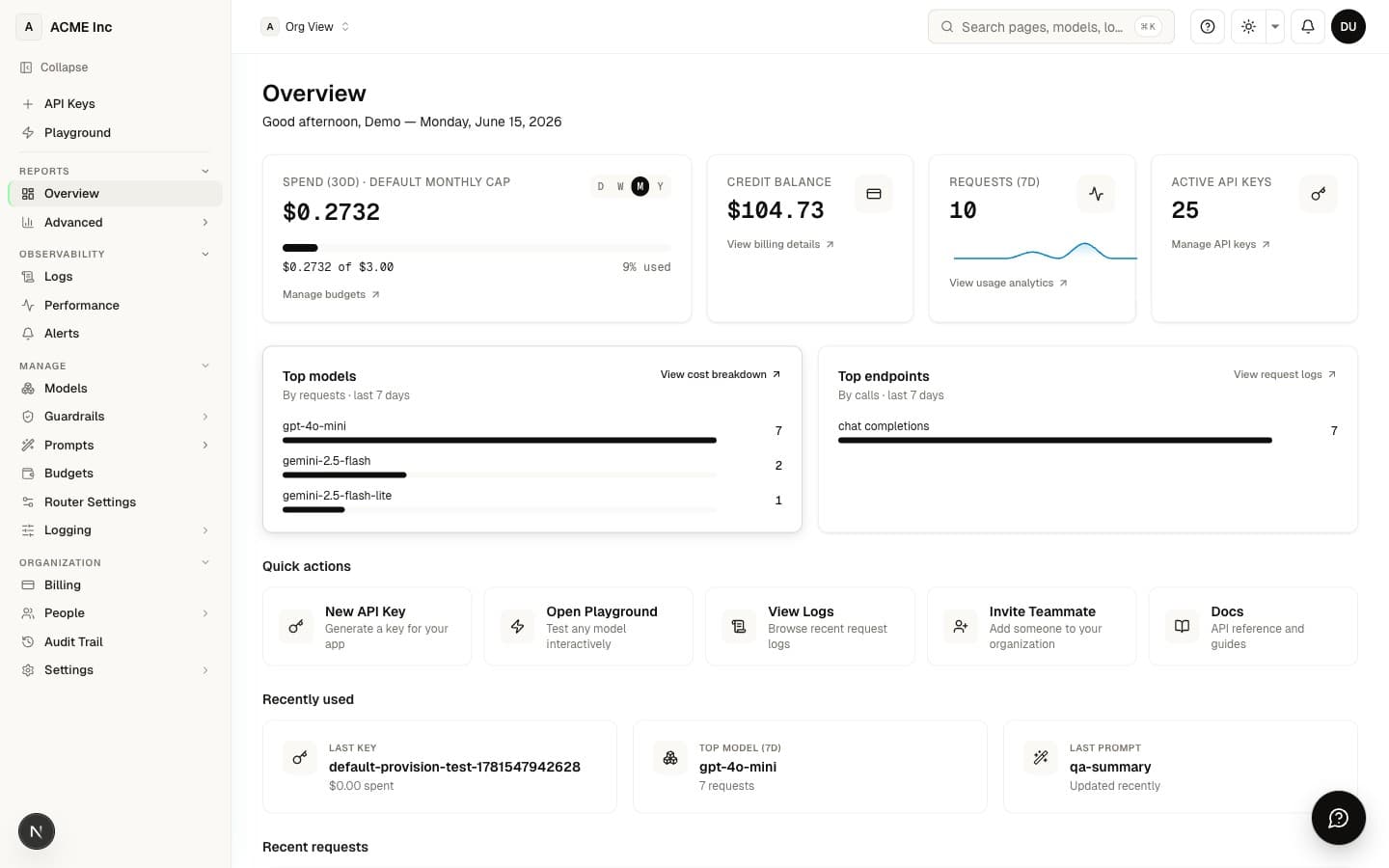
What's on the Overview
- Credit balance — your available credits right now
- Active keys — how many virtual API keys are live
- Prompt templates — your saved prompts count
- Budget card — utilization for the current cycle
- Top breakdowns — your busiest models and endpoints
- Setup guidance — onboarding hints while your org is new
Finding your way around
The left sidebar groups every feature. Here's the map, with links to the guide for each:
| Sidebar item | What it's for | Guide |
|---|---|---|
| API Keys | Create and manage virtual keys | API Key Management |
| Playground | Test models interactively | Playground |
| Overview | This page | — |
| Advanced | Cost, usage, budgets, benchmarks | Analytics & Reports |
| Logs | Per-request observability | Observability & Logs |
| Performance | Latency and reliability | Analytics & Reports |
| Alerts | Error, latency, and budget alerts | Alerts & Notifications |
| Models | The model catalog | Model Catalog |
| Guardrails | Content safety and PII | Guardrails |
| Prompts | Prompt templates and A/B tests | Prompt Management |
| Budgets | Set spend caps | Budget Controls |
| Router Settings | Routing strategy and fallbacks | Router Settings |
| Logging | Callbacks, alert channels, data policy | Observability & Logs |
| Billing | Credits, plans, invoices | Billing & Credits |
| People | Members and teams | Team Management |
| Audit Trail | Who changed what | Audit Log |
| Settings | Org configuration | Organization Settings |
Sections with a secondary panel
A few areas open a secondary panel — a second column of sub-pages — when you enter them:
- Advanced → Explore, Cost, Usage, Cost vs Usage, Compare, Benchmark, Budgets, Key Usage, Agents, API Consumers
- Guardrails → Org Guardrails, Key Assignments, Execution Logs
- Prompts → Templates, Recommendations, Prompt → Keys, Prompt → Teams, A/B Tests, History, Execution Logs
- Logging → Data Policy, Callbacks
- Alerts → Rules, Channels
- People → Members, Teams
- Settings → General, Security, Privacy, Branding, Localization, Danger Zone
What you can see depends on your role
Some items appear only for owners and admins — Router Settings, Logging, Billing, Audit Trail, and Settings. The People section is hidden for solo (individual) accounts. Members and viewers see most pages in read-only mode.
Keyboard shortcuts & command palette
Every dashboard page shares a set of keyboard shortcuts. Press ? anywhere to open the in-app cheatsheet, or use the command palette to jump to any page:
| Shortcut | What it does |
|---|---|
| ⌘K / Ctrl+K | Open the command palette (jump to any page) |
| ? | Open the keyboard-shortcuts cheatsheet |
| Esc | Close dialogs and popovers |
| ↑ / ↓ | Navigate lists and tables |
| ↵ Enter | Activate the selected item |
Next steps
- Quick Start — Make your first API call
- API Key Management — Create the key your code uses
- Analytics & Reports — Track cost and usage
FAQ
What does the Overview page actually show me?
It's your dashboard home and summarizes your organization at a glance: your current credit balance, how many active virtual keys you have, your saved prompt templates count, a budget card showing utilization for the current cycle, and top breakdowns of your busiest models and endpoints. While your org is new, it also shows setup guidance with onboarding hints.
Can I make API calls or spend credits directly from the Overview?
No. The Overview is a read-only summary of your org's health — balance, keys, budgets, and activity. To actually test models interactively use the Playground, and to create the key your code calls with, use API Key Management.
Does what I see in the sidebar depend on my role?
Yes. Router Settings, Logging, Billing, Audit Trail, and Settings appear only for owners and admins. Members and viewers see most other pages in read-only mode.
Why don't I see a "People" section?
The People section (members and teams) is hidden for solo, individual accounts. It appears once your organization has team members to manage — see Team Management.
Can members and viewers change things, or only look?
Members and viewers see most pages in read-only mode and don't get the owner/admin-only sections (Router Settings, Logging, Billing, Audit Trail, Settings). Making changes to those areas requires an owner or admin role.
What are the "secondary panels" some sections open?
A few areas open a second column of sub-pages when you enter them. For example, Advanced opens Explore, Cost, Usage, Compare, Benchmark, Budgets, and more; Guardrails opens Org Guardrails, Key Assignments, and Execution Logs; Prompts, Logging, People, and Settings each open their own sub-pages too.
The budget card shows utilization — where do I actually set a spend cap?
The Overview's budget card is a read-out of your current-cycle utilization. You set the actual caps in the Budgets section — see Budget Controls.
How is the credit balance on the Overview related to my billing?
The balance card reflects your available credits, which you top up and manage under Billing (credits, plans, invoices) — see Billing & Credits. The budget card then shows how much of your current cycle you've used against that spend.
What's the difference between the Advanced, Logs, and Performance sidebar items?
Advanced covers cost, usage, budgets, and benchmarks (see Analytics & Reports); Logs is per-request observability (see Observability & Logs); and Performance focuses on latency and reliability. They're separate surfaces for spend/usage analysis, individual request inspection, and speed/uptime respectively.
I'm brand new — what is the "Setup guidance" on the Overview?
It's a set of onboarding hints shown while your organization is still new, pointing you toward first steps. A good starting path is the Quick Start to make your first API call and API Key Management to create the key your code uses.