

Team Management
Manage team members and roles
Last updated
Nemo Router supports multi-member organizations with role-based access control. This guide covers how to invite members, assign roles, create teams, and manage permissions.
![Members page at /[organization]/people/members — member list, role chips, and the Invite Member action](/_next/image?url=%2F_next%2Fstatic%2Fmedia%2Fdashboard-team.df4fb273.jpg&w=3840&q=75)
Roles
Nemo Router has four organization-level roles with progressively increasing permissions:
| Role | Dashboard Access | Create Keys | Manage Team | Manage Billing | Delete Org |
|---|---|---|---|---|---|
| Viewer | Read-only analytics and logs | No | No | No | No |
| Member | Full dashboard access | Yes (own keys) | No | No | No |
| Admin | Full dashboard access | Yes (all keys) | Yes | Yes | No |
| Owner | Full dashboard access | Yes (all keys) | Yes | Yes | Yes |
Role Details
Viewer — Can view analytics, logs, and usage data but cannot create API keys or modify any settings. Ideal for stakeholders who need visibility without control.
Member — Can create and manage their own API keys, view analytics, and use the playground. Cannot invite members, modify budgets, or change organization settings.
Admin — Full management capabilities including inviting members, creating budgets, configuring guardrails, and managing all API keys. Cannot delete the organization.
Owner — All Admin capabilities plus the ability to delete the organization and transfer ownership. Every organization has exactly one owner (the person who created it).
Inviting Members
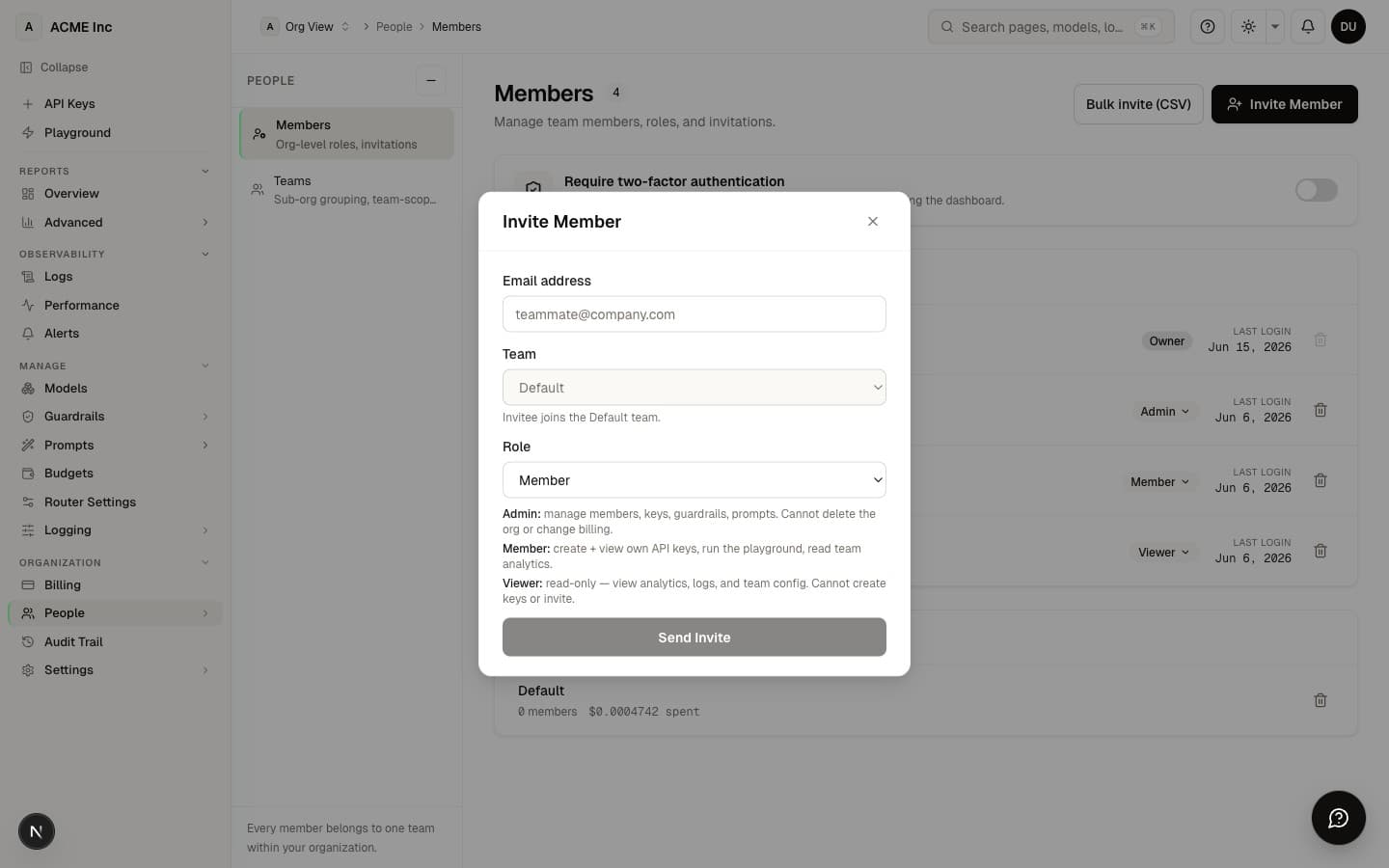
To invite a new team member:
- Navigate to People → Members (
/[organization]/people/members) in the dashboard sidebar - Click Invite Member
- Enter the person's email address
- Select a role (Viewer, Member, Admin)
- Click Send Invitation
The invitee will receive an email with a link to join your organization. The invitation expires after 7 days if not accepted.
Invitation States
| State | Description |
|---|---|
| Pending | Invitation sent, not yet accepted |
| Accepted | Member has joined the organization |
| Expired | Invitation was not accepted within 7 days |
You can resend or cancel pending invitations from the People → Members page.
Creating Teams
Teams are sub-groups within your organization. They're useful for separating API keys, budgets, and usage tracking by department, project, or environment.
To create a team:
- Go to People → Teams (
/[organization]/people/teams) - Click Create Team
- Enter a team name and optional description
- Add members to the team
Team-Scoped Resources
When you create a team, you can scope these resources to it:
| Resource | Scoping |
|---|---|
| API Keys | Keys can be assigned to a team, limiting who can manage them |
| Budgets | Set spending limits per team |
| Usage Analytics | View usage broken down by team |
| Guardrails | Guardrail assignments follow a scope hierarchy: key > team > org |
Managing Members
Changing Roles
Admins and Owners can change a member's role:
- Go to People → Members
- Find the member
- Click the role dropdown
- Select the new role
Role changes take effect immediately. The member's existing sessions will reflect the new permissions on their next page load.
Moving Members Between Teams
Every member belongs to exactly one team within your organization at a time. There is no self-service team switch — an Owner or Admin moves a member from People → Members. The member's keys and team-scoped budgets follow their new team.
Removing Members
To remove a member from your organization:
- Go to People → Members
- Find the member
- Click Remove
- Confirm the removal
When a member is removed:
- Their dashboard access is revoked immediately
- API keys they created remain active (they belong to the organization, not the individual)
- To revoke their keys, delete them separately from the API Keys page
Transferring Ownership
Every organization always has at least one owner — a last-owner guard prevents the final owner from being removed or demoted, so the org can never be left ownerless. If you need to hand ownership to another member, contact support@nemorouter.ai and we'll make the change.
Team Structure Examples
Small Team (2-5 people)
Organization
  ├── Owner: CTO
  ├── Admin: Tech Lead
  └── Members: 2-3 Developers
No teams needed — everyone shares the same API keys and budget.
Medium Team (5-20 people)
Organization
  ├── Owner: CTO
  ├── Admin: Engineering Manager
  ├── Team: Backend
  │     ├── API Keys: backend-prod, backend-staging
  │     └── Budget: $500/month
  ├── Team: Frontend
  │     ├── API Keys: frontend-prod
  │     └── Budget: $200/month
  └── Team: Data Science
        ├── API Keys: ml-pipeline, experiments
        └── Budget: $1,000/month
Teams separate concerns and budgets by department.
Enterprise (20+ people)
Organization
  ├── Owner: VP Engineering
  ├── Admins: Team Leads
  ├── Team: Product (Members + Viewers)
  ├── Team: Platform (Members)
  ├── Team: ML Research (Members)
  ├── Team: QA (Viewers)
  └── Team: Finance (Viewers — billing visibility only)
Granular teams with role-based access. Finance gets Viewer access for cost monitoring without the ability to create keys or make API calls.
Best Practices
- Use descriptive key names — Name keys after their purpose (e.g.,
prod-backend-api,staging-ci-pipeline) so you can identify usage in analytics - Set team budgets — Prevent any single team from consuming the entire credit balance
- Use Viewer role for stakeholders — Give managers and finance teams read-only access instead of full Member access
- Audit regularly — Review the People → Members page periodically to remove inactive members and revoke unused invitations
- Separate environments — Create different teams or keys for development, staging, and production
Next Steps
- Organization Setup — Configure your organization settings
- Budget Controls — Set spending limits per team or key
- Authentication — API key management